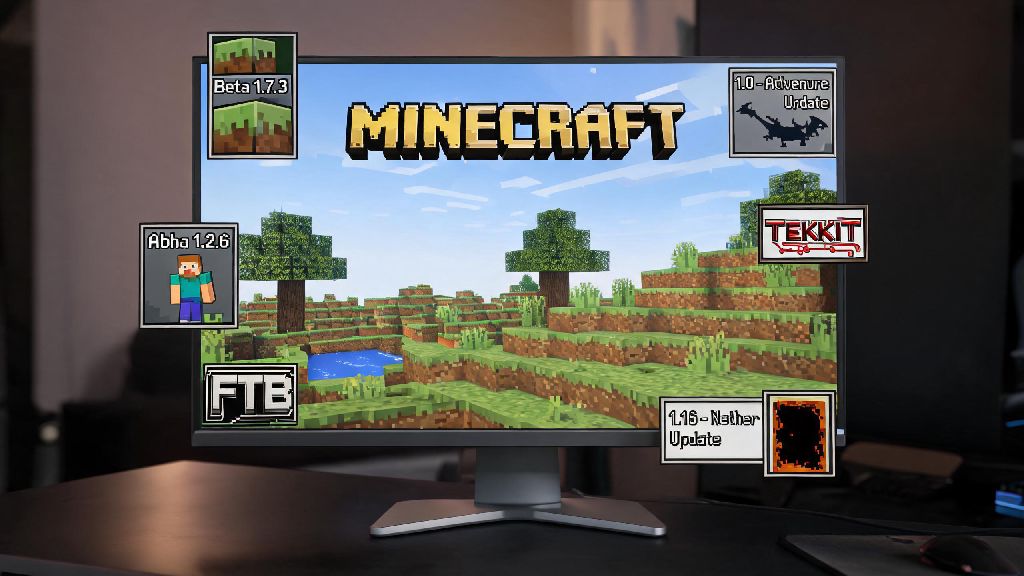
If you’ve scrolled TikTok in 2026 and seen clips of the iconic 2012 Beta 1.7.3 terrain generation, or wanted to revisit a modpack that never got updated past 1.12.2, you’re probably wondering how to play an old version of Minecraft without breaking your current install or running into security risks. I’ve been messing with legacy Minecraft builds for over 15 years at this point, and I’ve tested every method out there to avoid common pitfalls like corrupted saves, account bans, or hidden malware. This guide only covers methods approved by Mojang in 2026, so you won’t have to worry about losing access to your purchased skins or worlds halfway through.
How to Play an Old Version of Minecraft Using the Official 2026 Launcher
The official Minecraft launcher is the only 100% safe, Mojang-approved way to access legacy versions, and it’s been updated in 2026 to make sorting through old builds way easier than it used to be. To get started, open your launcher and head to the “Installations” tab at the top of the screen. Toggle the “Show historical versions” option on the right side, and you’ll see a full list of every alpha, beta, snapshot, and full release dating back to 2009. You should always create a separate installation folder for each old version to avoid cross-version save corruption, which happens when newer block IDs overwrite old ones in shared folders.
Once you select the version you want, click “Create” and wait for the launcher to download the official game files. All official legacy versions are verified by Mojang so you won’t run any risk of malware, which is a common issue with third-party launchers that claim to offer “free” legacy builds. If you’re logged in with your Microsoft account, you won’t need any extra verification to launch old versions, as all account migrations were completed back in 2021 and work across all build types in 2026.
Key Preparations Before Launching Any Legacy Minecraft Build
If you’re figuring out how to play an old version of Minecraft for the first time, these pre-launch steps will save you hours of troubleshooting down the line. I skip these about once a year and always regret it, so don’t make the same mistakes I have.
Versions older than Beta 1.8 do not support modern mouse and keyboard controls by default, so you may need to adjust your keybinds manually after first launch. If you want to play with friends, make sure everyone is on the exact same version, even minor mismatches will prevent you from connecting to the same server. I once spent 3 hours troubleshooting a connection issue with my friend group only to realize one of us had downloaded 1.7.2 instead of 1.7.10, so double check that first.
How to Safely Add Mods to Legacy Minecraft Versions in 2026
One of the biggest reasons people look up how to play an old version of Minecraft is to access discontinued mods that only work on specific legacy builds. The process is slightly different depending on the version you’re running, but the core rules stay the same to avoid crashes or malware. For versions older than 1.14, you’ll almost always use Forge as your mod loader, while versions 1.14 and newer work with either Forge or Fabric depending on the mod you want to use. Once you have your base legacy version running, you can download the matching mod loader build from the official Forge download page and run the installer, which will automatically add a new mod-ready installation to your launcher.
You should always scan downloaded mod files with a 2026-updated antivirus program before adding them to your mods folder, even if you got them from a reputable source like CurseForge. Some older mods require additional libraries like Liteloader, so read the mod description carefully before installing to avoid crashes on launch. If you don’t want to install mods individually, there are legitimate modpack platforms in 2026 that host pre-built legacy modpacks, but stick to well-known, trusted platforms to avoid accidentally downloading malware-ridden reposts.
Common Mistakes to Avoid When Playing Legacy Minecraft in 2026
Even if you follow all the steps above, there are a few common errors that trip up both new and experienced legacy Minecraft players. First, don’t use third-party launchers that promise “unlocked” versions of the game or access to paid DLC for free. These launchers almost always contain keyloggers or malware, and logging into your Microsoft account through them can lead to a permanent ban from all Minecraft services.
Second, don’t try to load a world created in a newer version into an old one, that will almost always corrupt the world beyond repair. I learned that the hard way when I tried to open my 2025 1.21 survival world in 1.16.5 to use an old world edit mod, and lost 6 months of builds. Don't share your installation folder with strangers if you have personal account data saved, even legacy versions can store cached login info that can be misused to access your Microsoft account. If you run into performance issues on old versions, you can use performance mods like Optifine for versions before 1.18, or Sodium for newer legacy releases, which can boost FPS even on low-end 2026 laptops.
At the end of the day, learning how to play an old version of Minecraft is a great way to revisit nostalgic memories, play iconic modpacks that never got updated, or experience the game’s earlier, simpler gameplay loops that many long-time fans still prefer. As long as you stick to the official launcher, take basic security precautions, and double check version compatibility for mods and servers, you won’t run into any major issues in 2026. I’ve spent hundreds of hours playing Beta 1.7.3 with my friends in the last year, and it’s still just as fun as it was when I first picked up the game as a kid. If you run into any snags following this guide, drop a comment below and I’ll help you troubleshoot.