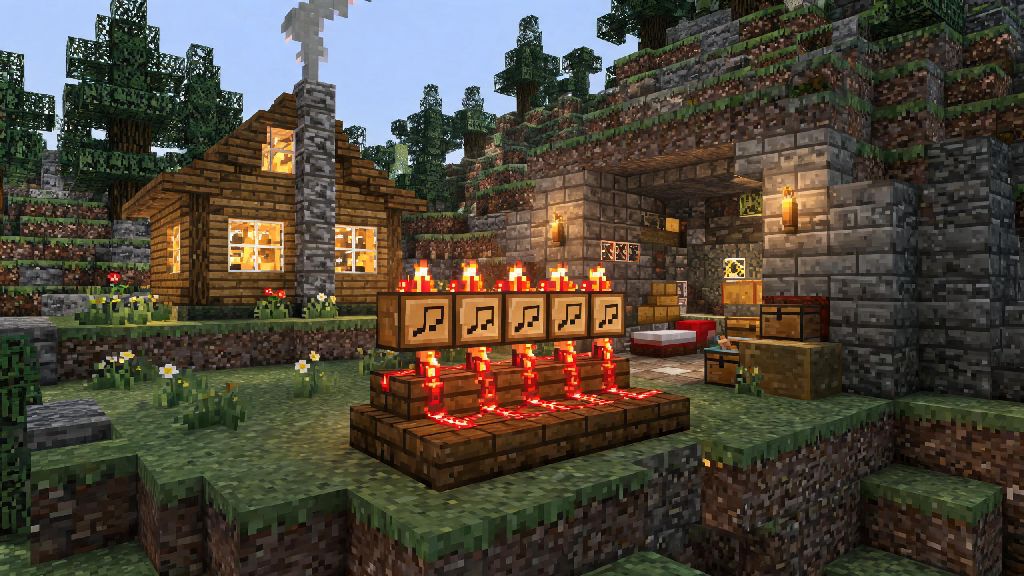
If you’ve ever wandered around your Minecraft base wishing you had custom background music to match your build’s vibe, you’re far from alone. A functional, in-game music player adds a cozy, personal touch to everything from mountain cabins to underground survival bunkers, and you don’t need fancy mods to pull it off. This step-by-step breakdown walks you through how to make a music player in Minecraft that works for both Java and Bedrock editions, with materials you can easily gather even in early survival mode.
Materials You’ll Need for Your Minecraft Music Player
You don’t need rare netherite or hard-to-find enchanted items to build this player. Most materials are readily available from overworld biomes, and you can swap out decorative blocks to match your base’s aesthetic. All of these materials are easy to source even if you’re still learning how to make a music player in Minecraft for the first time, no rare drops required. The core items you’ll need are:
Step-by-Step Process to Make a Music Player in Minecraft
First, find a flat, 3x5 block space in your base where you want the player to sit. You can build it into a wall or set it up as a freestanding piece of furniture, depending on your space. Start by placing the 12 note blocks in two rows of 6, leaving a 1-block gap between the rows for your redstone wiring. Next, lay your redstone dust in the gap, connecting each note block to the central line, and place the repeater at the end of the line to control the signal delay.
Once the wiring is set up, you’ll need to tune each note block to match the track you want to play. Right click each note block to raise its pitch by one half-step, and test the sound as you go to make sure it matches your chosen track. If you’re new to tuning note blocks, you can find free online note charts that map Minecraft note block pitches to standard piano keys, which cuts down the tuning time by more than half. Don’t rush this step: even one out-of-tune note will make your entire track sound off, so double check each pitch before you move on to wiring the activation switch.
Test the playback a few times before you add any decorative casing around the player. Make sure there is at least one empty block of air above every note block while you test, to avoid accidental sound muffling. If the track cuts out or skips notes, double check that your redstone dust is connected properly and the repeater is set to the right tick speed for your track.
Upgrades to Expand Your Music Player’s Functionality
Once you have your basic music player working, you can add a range of upgrades to make it more versatile. Many players like to add preset track banks so they can switch between different songs depending on their mood, instead of re-tuning the note blocks every time they want a new track. If you play on multiplayer servers, you might have seen custom slot-based track storage systems that let you save dozens of different tune sets without taking up extra base space. A popular option many players use for organizing saved track presets is Ind Slots, which makes it easy to sort and load your favorite tunes in seconds without extra redstone wiring.
Other popular upgrades include adding a sensor that activates the player automatically when you walk into your base, or adding speaker blocks (if you use a vanilla-friendly resource pack) to make the sound carry further across large builds. If you’re playing in survival mode, you can also add a lockable lever so other players on your server can’t mess with your track settings or turn off your music when you’re offline. These upgrades are completely optional, so you can stick to the basic design if you’re just learning how to make a music player in Minecraft for the first time. Just make sure any extra redstone you add doesn’t interfere with the original signal line, or you’ll end up with glitched playback and missed notes.
How to Fix Common Minecraft Music Player Issues
Even if you follow every step perfectly, you might run into a few common issues with your player, especially if you’re building it in a crowded base with lots of other redstone contraptions. The most common issue is intermittent signal loss, which happens when another redstone device on the same chunk sends a cross signal to your music player wiring. To fix this, just add a block of solid cobblestone between your player’s redstone line and any other nearby wiring to block the cross signal. If you’ve never troubleshooted redstone builds before, these fixes are simple enough even if you’re brand new to figuring out how to make a music player in Minecraft work reliably.
Another common issue is muffled or quiet sound, which usually happens if you’ve placed blocks too close to the top of your note blocks. Double check that there’s at least one empty block of space above every note block, and avoid placing glass or carpet directly on top of them, as both materials muffle sound output. If you want to adjust the volume of your player, you can add wool blocks around the sides and back of the note blocks to direct sound forward, instead of letting it bleed into other areas of your base.
If your track plays too fast or too slow, you just need to adjust the tick setting on your redstone repeater. Most standard tracks play best with a 1 or 2 tick delay, but slower, more ambient tracks work well with 3 or 4 tick delays. Test the playback a few times and adjust the repeater until the speed feels right for the track you’ve chosen. Always test playback after making any adjustments to your wiring or build casing, to catch small issues before they ruin your track.
Building a custom sound system for your base doesn’t require advanced redstone skills or expensive mod packs, and the personal touch it adds to your world is well worth the small time investment. Whether you’re building a cozy survival cottage or a massive creative city skyline, you can tweak this design to fit any aesthetic and play any track you love. Now that you know how to make a music player in Minecraft, you can start experimenting with different tracks and upgrades to make your base feel more like home every time you log in.