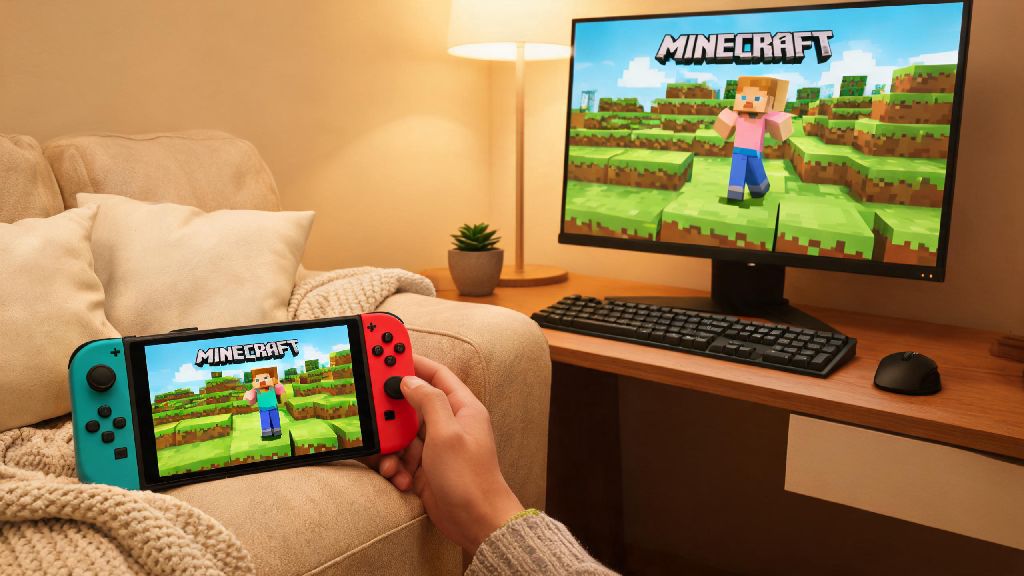
If you’ve ever been curled up on the couch playing Minecraft on your Switch, only to get a text from your friend asking to join their PC world, you’ve probably wondered can switch minecraft play with pc without jumping through a dozen hoops. I’ve been there too—once I spent 20 minutes fumbling with account settings just to join my little cousin’s creative world, and I swore I’d write down exactly what works so no one else has to waste that time. This guide breaks down everything you need to know, from eligibility requirements to common fixes for when crossplay won’t connect, so you can spend less time troubleshooting and more time building or exploring with your friends.
Can Switch Minecraft Play With PC? Eligibility Rules You Need to Know First
The first thing to clear up is that crossplay between Switch and PC only works for specific editions of the game. All Minecraft copies on Switch run the Bedrock Edition, so you can only connect to PC players who are also running Bedrock Edition, not the older Java Edition. You cannot crossplay between Switch Minecraft and PC Java Edition under any circumstances, even with third-party mods. The two editions run on completely separate codebases, and unsupported mods can put your Microsoft account at risk of suspension.
You also need to have a Microsoft account linked to your Switch Minecraft profile to crossplay with PC players. This is a non-negotiable requirement, as Minecraft Bedrock uses Microsoft’s account system to manage cross-platform friends lists and multiplayer permissions. If you created a Switch profile before Minecraft required Microsoft account linking, you can link it for free in just a few minutes directly from the Minecraft main menu on your Switch. Both you and your PC friend also need to be running the exact same version of Minecraft Bedrock to connect, so always check for updates before you plan to play together.
Step-by-Step Setup to Play Switch Minecraft With PC Friends
Once you confirm you meet all eligibility rules, setting up crossplay takes less than 10 minutes for most players. I’ve tested this process dozens of times with different friends, and following these steps in order will help you avoid most common connection issues. First, make sure you’ve added your friend to your Microsoft friends list, not just your Switch or Steam friends list. Minecraft Bedrock doesn’t pull friends from platform-specific lists, so this step is easy to miss if you usually play PC games through Steam.
Use this quick checklist to make sure you don’t skip any key steps:
Always update both copies of the game before trying to connect, as version mismatches are the single most common cause of crossplay failures. If the PC player is hosting the world, they just need to open their world, enable multiplayer, and send you an invite through the Microsoft friends tab. You’ll get the invite directly in your Switch Minecraft menu, and you can click to join immediately. If you’re joining a public Bedrock server instead of a private world, just enter the same server IP address on both devices, and you’ll be able to play together with no extra setup.
Common Crossplay Issues and Simple Fixes
Even if you follow every setup step perfectly, you might run into occasional connection issues, and most have super simple fixes you can try in a minute or less. The most common issue is not being able to see your friend’s world in your joinable friends list. The first fix to try is restarting both your game and your internet router—9 times out of 10, this clears up the minor connection glitch that’s hiding the world from your menu. If that doesn’t work, double check that you’re both on the same game version, and that you added each other correctly on your Microsoft accounts.
If you can see the world but get a “connection failed” error when you try to join, the problem is usually a strict NAT type on the host’s internet connection. If you’re the host, you can change your NAT type to open through your router settings, or use a free LAN proxy tool if you’re not comfortable adjusting router settings. If crossplay keeps lagging or disconnecting mid-game, the issue is almost always your Switch’s Wi-Fi connection. If you're playing on Switch over Wi-Fi, try moving closer to your router or using a wired Ethernet adapter for your Switch dock—Switch’s built-in Wi-Fi is notoriously weak, and I cut my crossplay lag by 80% after buying a $15 wired adapter for my dock.
Pros and Cons of Playing Switch Minecraft With PC Players
Crossplay between Switch and PC has a lot of great benefits, but it also has a few small drawbacks you should know about before you get started. One of the biggest pros is that you can sync your world across both devices if you use Microsoft Realms, so you can play on the go on your Switch, then pick up right where you left off on your PC when you get home. Microsoft Realms is the easiest way to sync your world across Switch and PC, so you don’t have to mess with manual file transfers every time you switch devices. You also get access to a far larger pool of public servers and community events, since most popular Bedrock servers have far more PC players than Switch players.
On the downside, Switch has a lower maximum render distance than PC Bedrock, so you might not be able to see faraway builds that your PC friend can see, which can be frustrating if you’re working on a large map together. Controller input on Switch is also less precise than mouse and keyboard for fast building or PvP, so you might be at a slight disadvantage if you’re playing competitive minigames against PC players. You can adjust your controller sensitivity in Minecraft settings to narrow the precision gap if you play a lot of PvP, but it won’t ever match mouse and keyboard exactly. You also have to purchase Minecraft separately for Switch and PC if you want to play on both devices, since there’s no cross-buy support between the two platforms.
At the end of the day, the answer to whether can switch minecraft play with pc is a yes, as long as you're both on Bedrock Edition and have your Microsoft accounts set up correctly. You don't need any fancy software or paid subscriptions (unless you want to use Realms for cloud saves) to play with your friends across the two platforms, and most common issues have super simple fixes you can try in less than a minute. I've spent dozens of hours playing crossplay with my friends on PC while I'm on my Switch, and once you get the initial setup out of the way, it's almost completely seamless. Don't let the fear of troubleshooting stop you from joining your friends' next build session or survival world.